
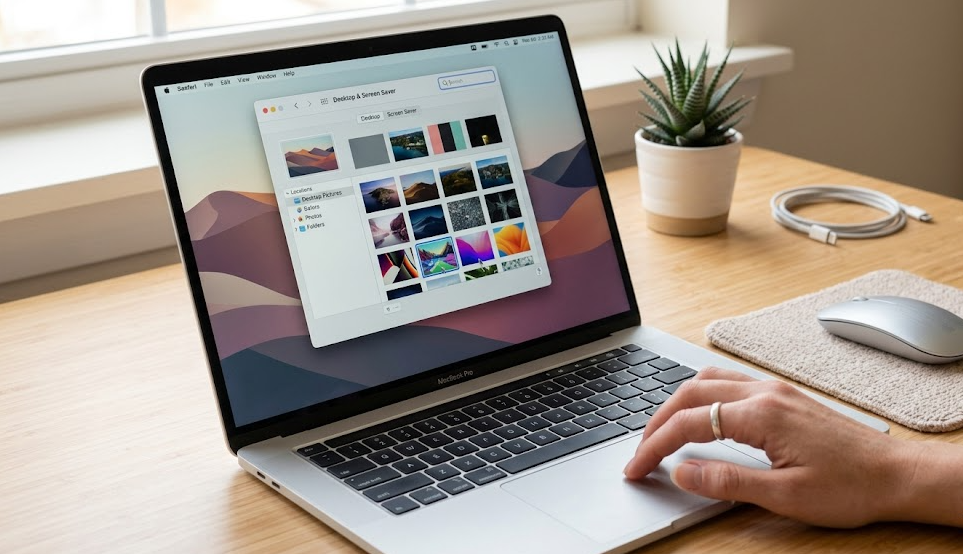
Changing your desktop background through System Settings is the most official and reliable method when learning how to change wallpaper on Mac. This option is built directly into macOS, allowing users to browse and apply wallpapers in just a few clicks. To begin, click the Apple menu () in the top-left corner of your screen and open System Settings. From there, select the Wallpaper section in the sidebar, where you will find Apple’s built-in collection of wallpapers, including dynamic images, solid colors, and curated photo sets.
Once you enter the Wallpaper settings, you can simply click on any image to apply it instantly. macOS will automatically update your desktop background without requiring additional confirmation. This method is especially useful for users who prefer a clean, structured interface and want quick access to high-quality wallpapers that are optimized for Mac displays. It also ensures system stability since all wallpapers are officially supported by Apple and designed for performance across different Mac models.
Using Finder Right-Click Method
Another quick and practical way to learn how to change wallpaper on Mac is by using the Finder right-click method. This approach is ideal when you already have an image saved on your Mac and want to set it as your desktop background instantly without navigating through System Settings. Simply open Finder, locate the image you want to use, and right-click on it to reveal the context menu.
From the options displayed, select “Set Desktop Picture,” and macOS will immediately apply the image as your wallpaper. It eliminates extra steps and allows you to customize your desktop in seconds, making it one of the most efficient shortcuts available on macOS.
Using Photos App for Custom Wallpapers

Using the Photos app is a great way to personalize your Mac when learning how to change wallpaper on Mac, especially if you prefer using your own pictures. This method allows you to turn memorable photos, travel shots, or creative images into your desktop background with ease. To do this, open the Photos app, select the image you want, and prepare it for use as your wallpaper.
Once the image is open, click the Share button in the top-right corner and choose the option “Use as Desktop Picture.” macOS will instantly apply the selected photo as your wallpaper and automatically adjust it to fit your screen resolution. This method is especially useful for users who want a more personal and meaningful desktop experience, as it lets you showcase your favorite moments directly on your screen while maintaining high visual quality.
Dynamic and Live Wallpapers on Mac
Dynamic and live wallpapers add a modern and visually appealing experience when exploring how to change wallpaper on Mac. These wallpapers are designed to automatically change based on the time of day, lighting conditions, or system settings. For example, a dynamic wallpaper may show a bright daytime scene in the morning and gradually shift to a darker, nighttime version as the day progresses.
To use dynamic wallpapers, go to System Settings and open the Wallpaper section, where you can find Apple’s built-in dynamic options. Once selected, macOS automatically manages the transitions in real time without requiring any manual adjustments. This feature not only enhances the aesthetic appeal of your desktop but also creates a more natural and comfortable viewing experience, especially during long working hours or late-night use.
Setting Slideshow Wallpapers for Automatic Changes
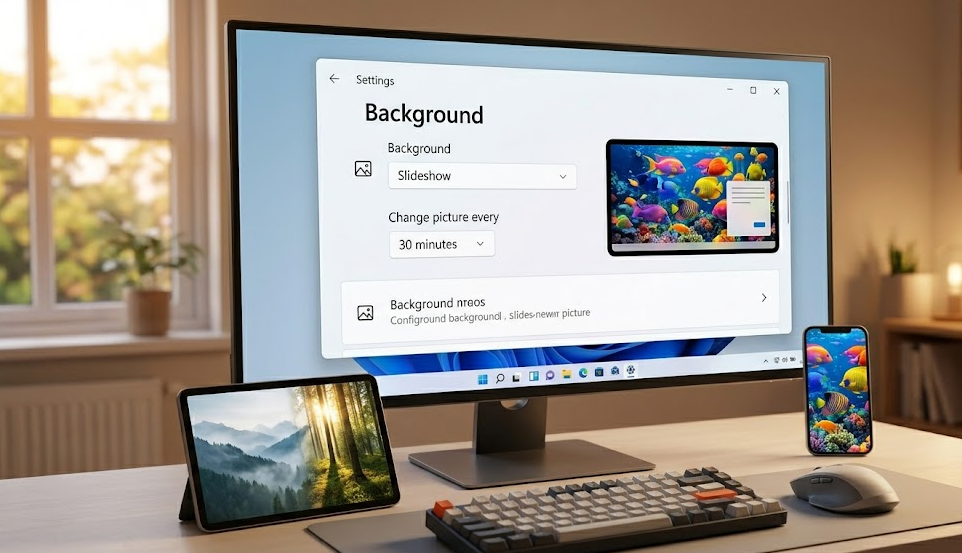
Setting slideshow wallpapers is a useful feature for users who enjoy variety when learning how to change wallpaper on Mac. Instead of sticking to a single image, macOS allows you to create a rotating wallpaper setup that automatically changes at set time intervals. This is ideal for users who have multiple favorite images and want a fresh desktop look throughout the day.
To enable this feature, you need to select a folder containing your preferred images in System Settings under the Wallpaper section. Once chosen, you can activate the slideshow option and set how often the wallpaper should change, such as every few minutes, hourly, or daily. This method is popular among creative professionals and students because it keeps the desktop visually engaging and prevents monotony during long work sessions.
Troubleshooting Wallpaper Issues on Mac
Sometimes, users may face issues while trying to learn how to change wallpaper on Mac, such as wallpapers not applying, reverting back after restart, or not displaying correctly. In most cases, a quick restart of the Mac resolves temporary system glitches that affect wallpaper settings.
Another common fix is updating macOS, as outdated software can sometimes cause display or customization bugs. In rare cases, resetting desktop preferences or clearing system cache may be necessary. Keeping your Mac updated and properly configured usually ensures smooth wallpaper functionality without recurring issues.
Tips for Better Wallpaper Experience
Improving your wallpaper setup can make a big difference when mastering how to change wallpaper on Mac, especially if you want a more comfortable and visually appealing workspace. One important tip is to always choose high-resolution images that match or exceed your Mac’s screen resolution. This prevents blurriness and ensures that your desktop looks sharp and professional.
Another useful tip is to match your wallpaper with your workflow. For example, minimal and dark wallpapers can reduce distractions and help improve focus during work or study sessions, while bright and colorful wallpapers can boost creativity. Many users also prefer organizing a small folder of selected wallpapers so they can quickly switch between styles whenever they want a fresh look without wasting time searching for new images.
Conclusion
Learning how to change wallpaper on Mac is a simple but powerful way to personalize your workspace and improve your daily computing experience. Whether you use System Settings, Finder shortcuts, or the Photos app, macOS offers multiple flexible methods to quickly customize your desktop background. Advanced options like dynamic wallpapers and slideshow settings also allow you to keep your screen visually fresh and engaging throughout the day.
By choosing high-quality images and adjusting them based on your style or productivity needs, you can create a workspace that feels more comfortable and motivating. Small customization changes like wallpapers may seem minor, but they can significantly enhance your overall Mac experience by making your environment more personal and visually enjoyable.
FAQs
1. What is the fastest way to change wallpaper on Mac?
The fastest way is to right-click any image in Finder and select “Set Desktop Picture.”
2. Can I use my own photos as wallpaper on Mac?
Yes, you can use the Photos app or Finder images to set any personal photo as your wallpaper.
3. Why does my Mac wallpaper keep changing back?
This usually happens due to slideshow settings or system glitches that can be fixed by checking Wallpaper settings or restarting your Mac.
4. Does macOS support dynamic wallpapers?
Yes, macOS includes dynamic wallpapers that change automatically based on time of day and lighting conditions.
For More Visit Accurate Unit Convert












Leave a Reply