
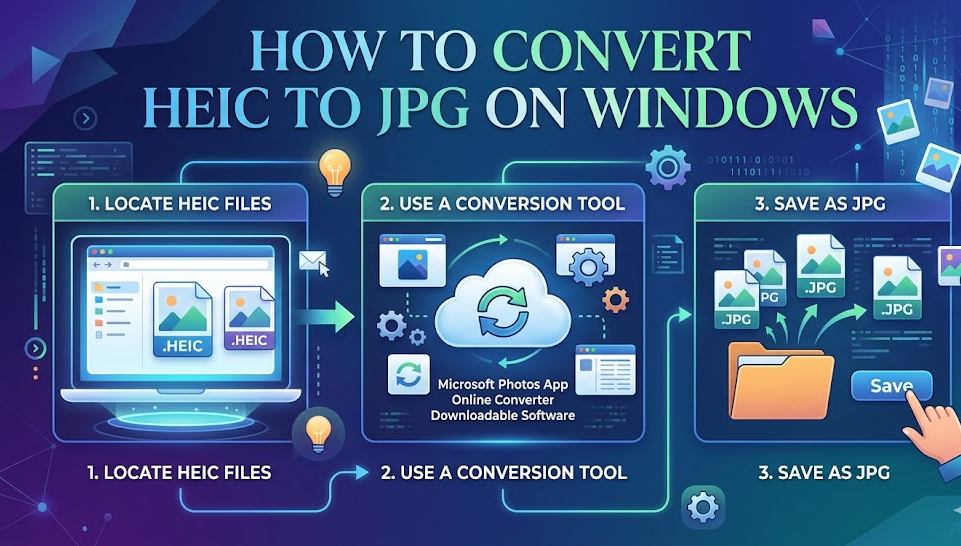
If you’ve ever transferred photos from an iPhone to your PC, you’ve likely encountered the HEIC format and wondered how to convert HEIC to JPG on Windows. While HEIC files are efficient and high-quality, they are not always compatible with Windows systems, apps, or websites.
This comprehensive guide explains everything you need to know about converting HEIC to JPG on Windows 11, Windows 10, and even Windows 7. Whether you want a free method, a bulk solution, or a way to convert HEIC files without installing software, this article will walk you through practical, step-by-step solutions.
What Is HEIC and Why Convert It to JPG?
HEIC stands for High Efficiency Image Container, a modern image format introduced by Apple. It offers better compression than JPG, meaning smaller file sizes without losing quality. However, compatibility is still limited compared to JPG.
JPG remains the most widely supported image format across browsers, editing tools, and operating systems. That is why many users look for ways to convert HEIC to JPG on Windows for easier sharing, editing, and uploading.
Why HEIC Files Don’t Work Well on Windows
Windows systems, especially older versions, don’t fully support HEIC files by default. Even on newer versions like Windows 11, additional codecs may be required. Without proper support, HEIC files may not open, preview, or edit correctly.
This compatibility issue is the main reason users search for how to convert HEIC to JPG on Windows free or without software.
How to Convert HEIC to JPG on Windows 11
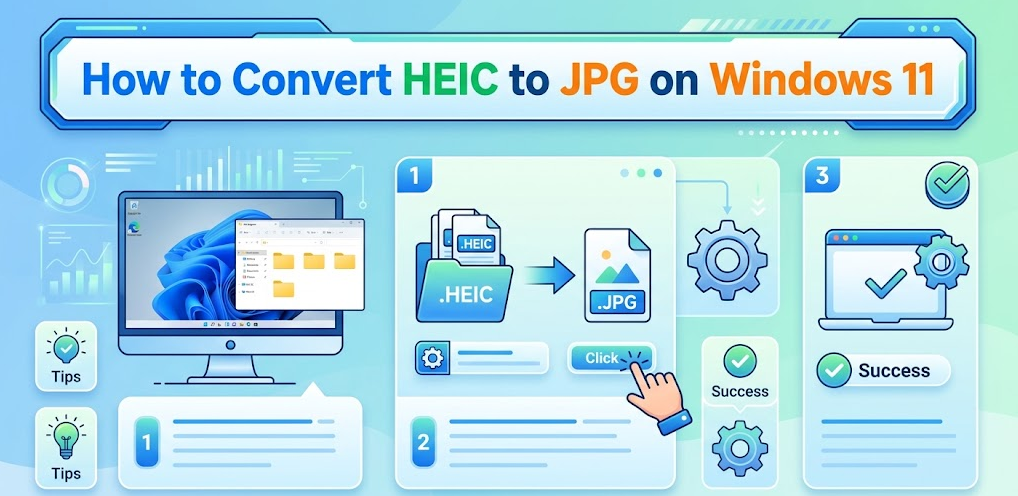
Windows 11 offers improved support for HEIC images, but conversion still requires a few steps.
Using Built-In Windows Tools
First, install HEIC support through the Microsoft Store. Once installed, you can open HEIC images in the Photos app.
After opening the image, click on the Save As option and select JPG format. This is one of the easiest ways to convert HEIC to JPG on Windows 11 without relying on third-party tools.
Using the Photos App
Open your HEIC image using the Photos app. Then choose Edit and select Save a copy. Choose JPG as the output format.
This method is simple and works well for single images, making it ideal for users who don’t need bulk conversion.
How to Convert HEIC to JPG on Windows 10
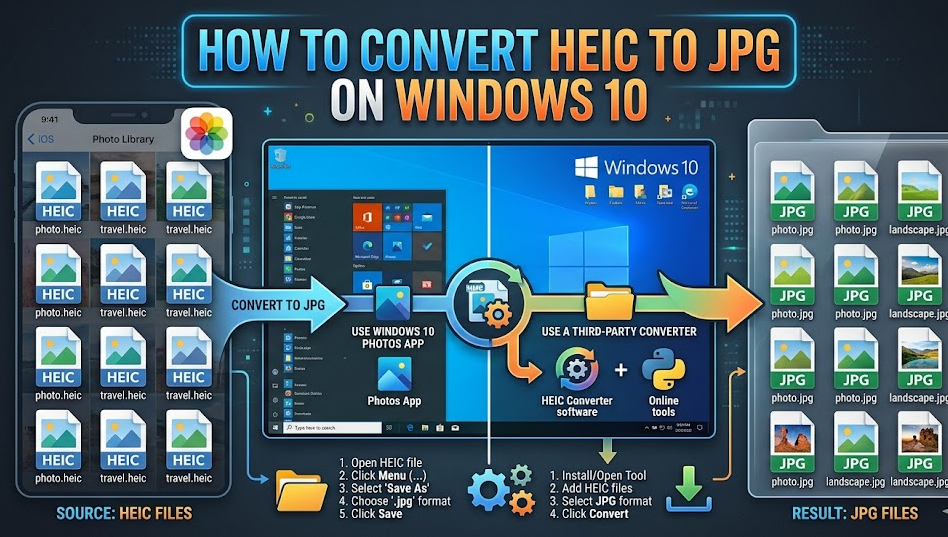
Windows 10 users often face similar compatibility issues, but solutions are straightforward.
Install HEIF Image Extensions
Download HEIF Image Extensions from the Microsoft Store. This allows Windows to recognize HEIC files.
After installation, open the image and save it as JPG using the Photos app.
Use Paint for Conversion
Once HEIC support is installed, you can open the image in Paint. Then simply use Save As and select JPG format.
This method is fast, free, and built into Windows, making it a popular choice for those searching how to convert HEIC to JPG on Windows 10.
How to Convert HEIC to JPG on Windows Without Software
If you prefer not to install additional software, there are still effective options.
Using Email Method
Attach the HEIC image to an email and send it to yourself. Some email services automatically convert images to JPG.
Download the image from your inbox, and it will often be in JPG format.
Using Cloud Storage
Upload your HEIC file to cloud platforms like Google Drive or Dropbox. When downloading or previewing, some services offer JPG conversion.
This is one of the easiest answers to how to convert HEIC to JPG on Windows without software.
How to Convert HEIC to JPG on Windows Free
Many users want completely free solutions, and fortunately, there are several.
Free Online Converters
Web-based tools allow you to upload HEIC files and download JPG versions instantly. These tools are ideal for occasional conversions.
Built-In Windows Tools
As discussed earlier, Windows Photos and Paint provide free conversion options once HEIC support is enabled.
These methods ensure you can convert HEIC to JPG on Windows free without spending money.
How to Convert HEIC to JPG on Windows in Bulk
If you have multiple HEIC files, converting them one by one can be time-consuming.
Using Batch Conversion Tools
Batch converters allow you to select multiple files and convert them all at once. Many free tools support drag-and-drop functionality for faster processing.
Using Online Bulk Converters
Some websites allow you to upload multiple HEIC images and download them as a ZIP file containing JPG versions.
This is the best solution for users searching how to convert HEIC to JPG on Windows in bulk.
How to Convert HEIC to JPG on Windows 7
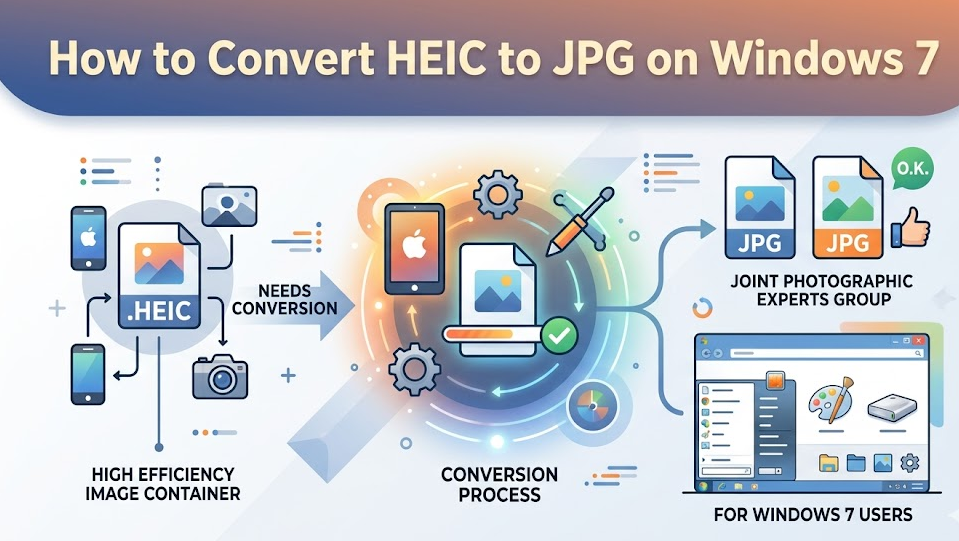
Windows 7 has limited support for HEIC files, making conversion slightly more challenging.
Use Online Tools
Since Windows 7 lacks native support, online converters are the easiest option. Simply upload your HEIC file and download the JPG version.
Transfer via Mobile Device
Another workaround is to transfer images through apps that automatically convert HEIC to JPG during transfer.
These methods help users who still rely on older systems.
Best Practices for HEIC to JPG Conversion
When converting images, quality and file size should be considered.
Always choose tools that preserve image resolution. Avoid excessive compression, which can reduce image clarity.
For bulk conversions, ensure your system has enough storage and processing power to handle large files.
Common Issues and How to Fix Them
HEIC File Not Opening
Install HEIF extensions or use an online converter.
Poor Image Quality After Conversion
Use high-quality conversion tools and avoid multiple conversions.
Slow Conversion Speed
Batch tools or offline software often perform faster than online options.
Advantages of Converting HEIC to JPG
JPG files are universally compatible, easier to upload, and widely supported by editing tools. They are ideal for sharing on social media, websites, and email.
Conclusion
Understanding how to convert HEIC to JPG on Windows is essential for anyone working with images from modern smartphones. Whether you are using Windows 11, Windows 10, or even Windows 7, there are multiple solutions available to suit your needs.
From built-in tools and free online converters to bulk processing methods, you now have a complete toolkit for handling HEIC files efficiently. By choosing the right approach, you can ensure high-quality images, better compatibility, and a smoother workflow.
FAQs
How do I convert HEIC to JPG on Windows 11 for free?
You can use the Photos app after installing HEIF extensions or use free online converters.
Can I convert HEIC to JPG without installing software?
Yes, you can use email or cloud storage services to convert files without installing anything.
What is the fastest way to convert HEIC files in bulk?
Batch conversion tools or online bulk converters provide the fastest solution.
Does converting HEIC to JPG reduce quality?
There may be slight compression, but using high-quality tools minimizes noticeable loss.
Is HEIC better than JPG?
HEIC offers better compression and quality, but JPG is more widely supported across platforms.
For More Visit Accurate Unit Convert












Leave a Reply