
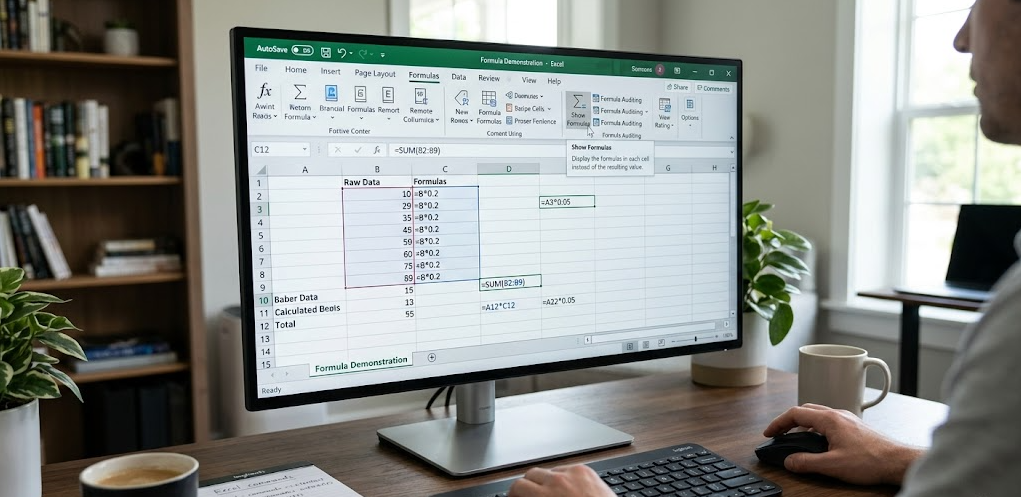
How to show formulas in Excel starts with knowing what this feature actually does. Normally, Excel displays only the final calculated results inside cells, such as numbers, dates, or text outputs. However, every result is generated from an underlying formula that defines how the calculation works. When you activate the “Show Formulas” feature, Excel switches from displaying results to showing the actual formulas written in each cell, such as =A1+B1 instead of just the output value. This helps users clearly understand how data is being calculated and allows them to trace logic across large spreadsheets. It is especially useful in financial analysis, reporting, and data validation where accuracy and transparency are important.
Keyboard Shortcut Method
One of the quickest ways to learn how to show formulas in Excel is by using a simple keyboard shortcut that instantly toggles formula visibility. When you press Ctrl + ` (grave accent key), Excel immediately switches the worksheet view from showing calculated results to displaying the actual formulas in every cell. This lets you review how each value in the spreadsheet is generated without opening individual cells. Users widely use the shortcut because it saves time, especially when working with large datasets or complex calculations. Pressing the same shortcut again returns the sheet to its normal view, where only results appear. Many users prefer this method because it is fast, efficient, and does not require navigating through menus or settings.
Using the Formulas Tab in Excel

Another simple way to understand how to show formulas in Excel is by using the built-in options in the Excel ribbon. At the top of the program, you can go to the Formulas tab, where Excel provides a dedicated button called “Show Formulas.” When you click this option, the entire worksheet instantly switches to display formulas instead of calculated results. This method is especially helpful for users who prefer using visual menus instead of keyboard shortcuts. It also reduces the chance of accidentally toggling views since the button clearly indicates whether formula mode is active or not. Many beginners find this approach easier because it provides a clear, guided way to control formula visibility without memorizing key combinations.
Excel Options Settings for Formula Display
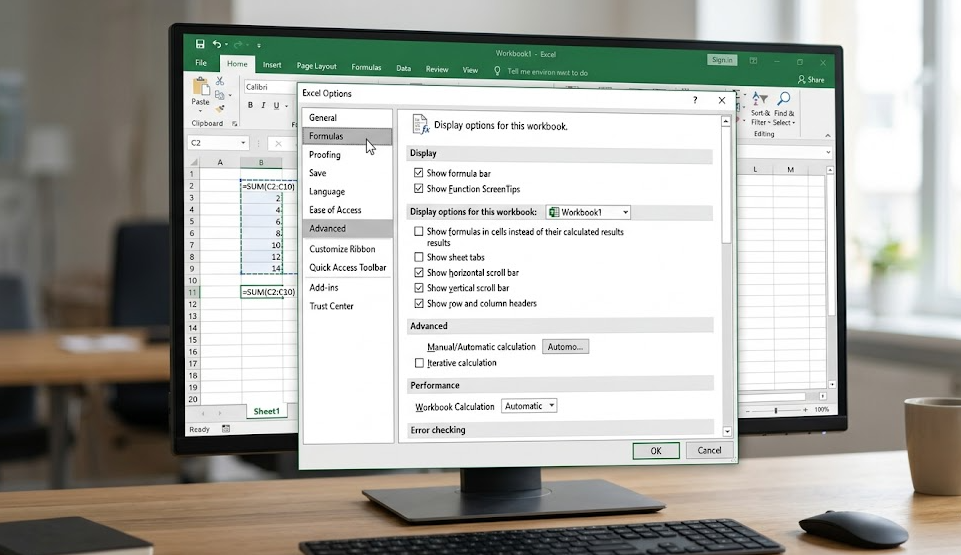
You can also control how to show formulas in Excel through the program’s settings, which is useful if you want formulas to stay visible permanently in a worksheet. To do this, go to File → Options → Advanced, then scroll down to the section called “Display options for this worksheet.” Here, you can enable the option “Show formulas in cells instead of their calculated results.” Once you turn on this setting, Excel will always display formulas in that specific sheet until you change it back. Professionals often use this method in environments where people share spreadsheets for auditing or review purposes because it ensures transparency in calculations. This approach provides a more permanent solution compared to shortcuts or ribbon buttons, making it ideal for users who regularly work with formula-heavy reports.
Viewing Formulas in Formula Bar & Auditing Tools
Another important way to understand how to show formulas in Excel is by using the Formula Bar and built-in auditing tools. When you click on any cell, the Formula Bar at the top of Excel displays the formula used in that cell, even if the worksheet is showing only calculated results. If the Formula Bar is not visible, you can enable it from the View tab, ensuring you always have access to individual formulas.
Excel also provides advanced auditing tools such as Trace Precedents, Trace Dependents, and Evaluate Formula, which help break down complex calculations step by step. These tools are especially useful when working with large spreadsheets where formulas are interconnected. They allow users to clearly understand how data flows between cells, making it easier to identify errors and verify calculations accurately.
Common Issues and Troubleshooting
While learning how to show formulas in Excel, users sometimes face unexpected issues that can cause confusion. One of the most common problems is accidentally activating the “Show Formulas” mode using the keyboard shortcut, which makes the entire sheet display formulas instead of results. This can look like an error at first, but it is simply a view setting that can be turned off with the same shortcut or by using the Formulas tab.
Another frequent issue occurs when the Formula Bar is hidden, making it difficult to view individual cell formulas. In such cases, enabling the Formula Bar from the View tab usually fixes the problem instantly. Sometimes, worksheet protection or formatting settings may also prevent formulas from displaying correctly. Checking these settings ensures Excel behaves normally and formulas appear as expected, helping users avoid unnecessary confusion during data work.
Best Practices to Work with Excel Formulas
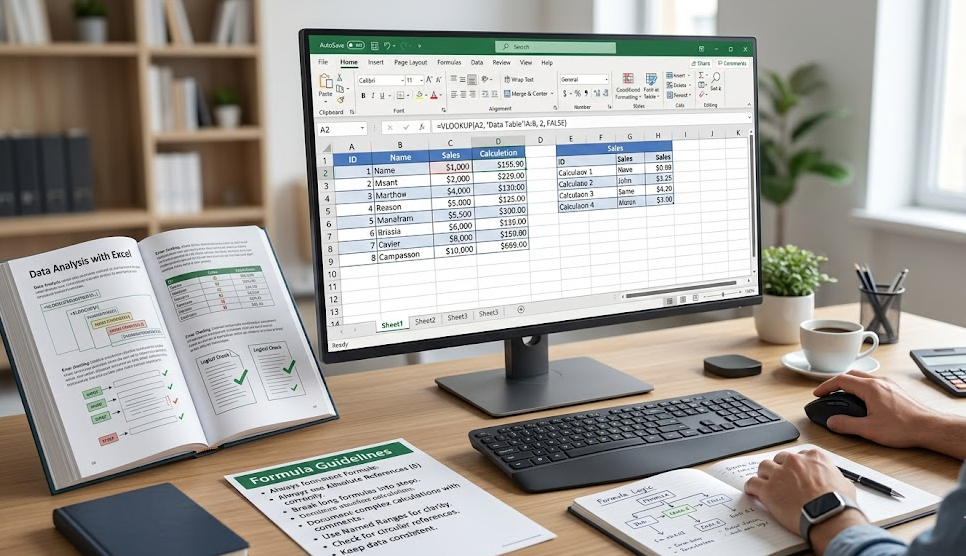
When working with how to show formulas in Excel, following best practices can make your spreadsheets more accurate, readable, and easier to manage. One important practice is to regularly switch between normal view and formula view while building complex sheets. This helps you quickly spot errors, broken references, or incorrect calculations before they affect your final results. It also improves your understanding of how different parts of the spreadsheet are connected.
Another useful habit is to keep formulas clean and structured by using proper cell references instead of hardcoded values. This makes updates easier and reduces the chance of mistakes when data changes. Many professionals also recommend adding comments or notes for complex formulas so others can understand your logic. Using Excel’s auditing tools alongside formula visibility ensures better accuracy, especially in financial reports, data analysis, or business dashboards where precision is critical.
Conclusion
Understanding how to show formulas in Excel is an essential skill that improves accuracy, transparency, and control over your spreadsheets. Whether you use keyboard shortcuts, the Formulas tab, Excel settings, or the Formula Bar, each method gives you a clear way to inspect how calculations are built. This is especially useful when working with large datasets or complex models where hidden errors can easily go unnoticed. By regularly checking formulas, you can ensure your data remains reliable and easy to audit. Mastering these techniques helps you work more confidently in Excel and makes troubleshooting much faster and more efficient.
FAQs
1. What is the fastest way to show formulas in Excel?
The fastest method is pressing Ctrl + `, which instantly toggles formula view.
2. Why is Excel showing formulas instead of results?
This happens when “Show Formulas” mode is accidentally enabled.
3. Can I show formulas for only one cell in Excel?
Yes, you can click the cell and view its formula in the Formula Bar.
4. Does Excel allow printing formulas instead of values?
Yes, if formula view is enabled before printing, Excel will print formulas instead of results.
For More UpdateS Visit: Accurate Unit Convert














Leave a Reply