
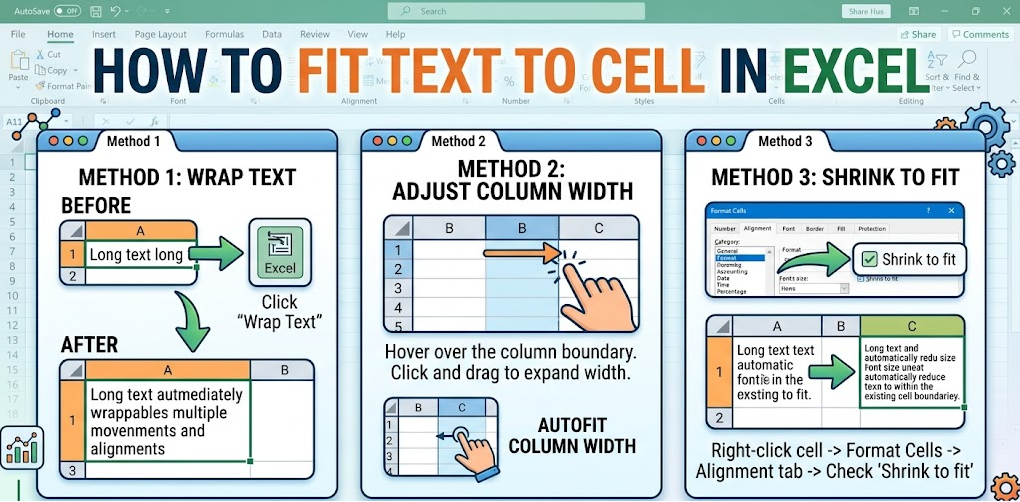
When learning how to fit text to cell in Excel, it is important to first understand why text overflows in the first place. Excel is designed to store data in a grid system, where each cell has a fixed width and height. If the text inside a cell is longer than the available space, Excel either allows it to spill into the next empty cell or cuts it off if the adjacent cell already contains data.
This behavior often confuses new users, especially when working with long names, descriptions, or notes. The overflow does not mean the data is lost—it is simply not fully visible. That is why Excel provides formatting tools that help users control how content is displayed without changing the actual data.
How Wrap Text Helps in Fitting Content
One of the most effective solutions for how to fit text to cell in Excel is the Wrap Text feature. This tool automatically breaks long text into multiple lines within the same cell, making everything visible without changing column width. It is especially useful for headings, comments, and detailed descriptions.
When Wrap Text is enabled, Excel adjusts the row height automatically so that all content fits neatly inside the cell. This keeps your spreadsheet organized and prevents text from spilling into other cells. It is widely used in reports and dashboards where readability is more important than compact layout.
Using AutoFit for Columns and Rows
AutoFit is another powerful tool for users trying to solve how to fit text to cell in Excel efficiently. Instead of manually resizing columns or rows, AutoFit automatically adjusts the cell size based on the longest piece of content in that column or row.
This feature is especially helpful when working with large datasets where text length varies. By double-clicking the column border or using the Format option in Excel, users can instantly make all content visible without distortion. It ensures a clean and balanced spreadsheet layout.
Shrink to Fit Feature Explained
The Shrink to Fit option is another useful method when dealing with how to fit text to cell in Excel, especially when you cannot change column width. Instead of expanding the cell, Excel reduces the font size so that the entire text fits within the existing space.
This feature is commonly used in dashboards, printed reports, or fixed-layout sheets where space is limited. While it keeps everything visible, it should be used carefully because very small text can become difficult to read if overused.
Adding Manual Line Breaks in Cells
Sometimes automatic tools are not enough, and users prefer more control when learning how to fit text to cell in Excel. In such cases, manual line breaks can be added by pressing Alt + Enter inside a cell. This allows you to decide exactly where the text should move to a new line.
This method is especially useful for structured content like addresses or multi-line notes. It helps maintain clarity while ensuring that important information is properly organized within a single cell.
Best Practices for Clean Excel Formatting
When working with how to fit text to cell in Excel, following best practices ensures your spreadsheet remains professional and easy to read. One important practice is choosing the right formatting tool based on the situation instead of relying on a single method for everything.
For example, use Wrap Text for readability, AutoFit for dynamic content, and Shrink to Fit only when space is limited. Keeping consistent formatting across your sheet improves clarity and makes data analysis much easier for others.
Common Mistakes to Avoid in Excel Text Formatting
Many users make mistakes when trying to learn how to fit text to cell in Excel, such as overusing Shrink to Fit or manually adjusting every column instead of using built-in tools. These habits can make spreadsheets messy and harder to maintain.
Another common issue is ignoring readability. While fitting text is important, ensuring that the content remains easy to read is even more important. Always balance space efficiency with clarity to maintain a professional appearance.
Conclusion
Understanding how to fit text to cell in Excel is a simple but powerful skill that improves the quality of any spreadsheet. By using tools like Wrap Text, AutoFit, Shrink to Fit, and manual line breaks, users can ensure that all data is clearly visible and well-organized. These features not only enhance readability but also save time and reduce formatting errors. With consistent practice, managing Excel text becomes much easier and more efficient.
FAQs
1. What is the easiest way to fit text in Excel cells?
The easiest method is using Wrap Text, which automatically adjusts text within the same cell.
2. Why is my text not fully visible in Excel?
Text may overflow because the column is too narrow or the cell does not have Wrap Text enabled.
3. Does AutoFit change my data in Excel?
No, AutoFit only changes the column or row size, not the actual data.
4. When should I use Shrink to Fit?
Use it when you cannot change cell size but still need all text visible in a limited space.
For More UpdateS Visit: Accurate Unit Convert














Leave a Reply