
If your iPhone feels slow, apps take longer to load, or storage space suddenly disappears, cached files may be the reason. That is why learning how to clear cache on iPhone is important for keeping your device fast and organized.
Cache is temporary data stored by apps and browsers to make them load faster. For example, when you visit a website or open an app, your iPhone saves images, scripts, and small files. The next time you use that app or website, it loads faster because the phone uses stored data instead of downloading everything again.
Although cache helps improve speed, too much cached data can cause problems. Over time, apps like Instagram, Facebook, and browsers like Safari or Chrome store large amounts of temporary files. These files can occupy storage space, slow down apps, or even cause glitches.
The good news is that clearing cache is very easy. Whether you use iPhone 13, iPhone 14, iPhone 15, iPhone 16, iPhone 16 Pro Max, or even future models like iPhone 17, the steps are almost the same.
In this guide, you will learn simple methods for how to clear cache on iPhone apps, Safari, Instagram, Facebook, and Google Chrome. By following these steps, you can free storage, fix app issues, and keep your iPhone running smoothly.
What Is Cache on iPhone
Cache is temporary storage used by apps and browsers. It stores frequently used data so that your phone can load information faster the next time you use an app or website.
When you open a website or scroll through social media, your phone downloads images, videos, and scripts. Instead of deleting them immediately, the iPhone saves them as cache so they can load quickly later.
However, as time passes, these files build up. Large amounts of cached data can occupy storage space and affect device performance. Clearing cache removes these unnecessary files and helps refresh the system.
Another reason cache matters is that outdated files sometimes cause errors. For example, a website may not display correctly because the phone loads old data instead of new content. Removing cache forces the device to download fresh files.
That is why experts recommend clearing cache occasionally. It keeps the phone organized, improves browsing performance, and prevents storage from filling up unnecessarily.
How to Clear Cache on iPhone Safari
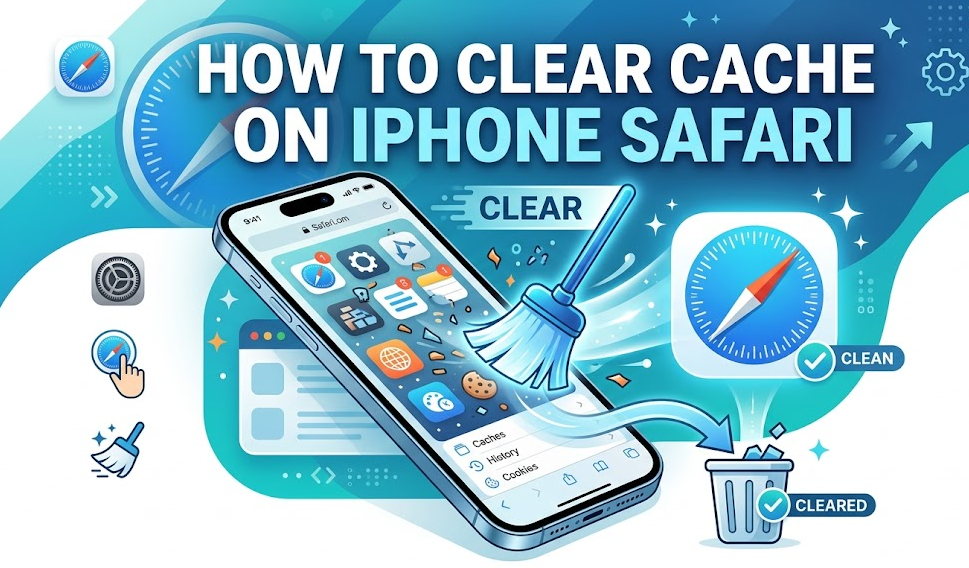
Safari is the default browser on iPhone devices. It stores website data to make browsing faster. If you browse many websites daily, Safari cache can grow quickly.
To solve this issue, Apple allows users to remove stored browsing data directly from settings.
First, open the Settings app on your iPhone. Scroll down until you find the Safari option. Tap it to open Safari settings.
Inside Safari settings, look for the option called Clear History and Website Data. When you select it, your phone will delete browsing history, cookies, and cached images from your device.
After confirming the action, Safari removes stored website data in a few seconds. This process helps fix loading problems and frees storage space.
Clearing Safari cache does not remove saved passwords stored in iCloud. It only removes temporary browsing files and cookies.
Doing this occasionally helps maintain fast browsing speed and ensures websites load correctly.
Also Read:- How to Find Area: Complete Beginner-Friendly Guide
How to Clear Cache on iPhone Apps
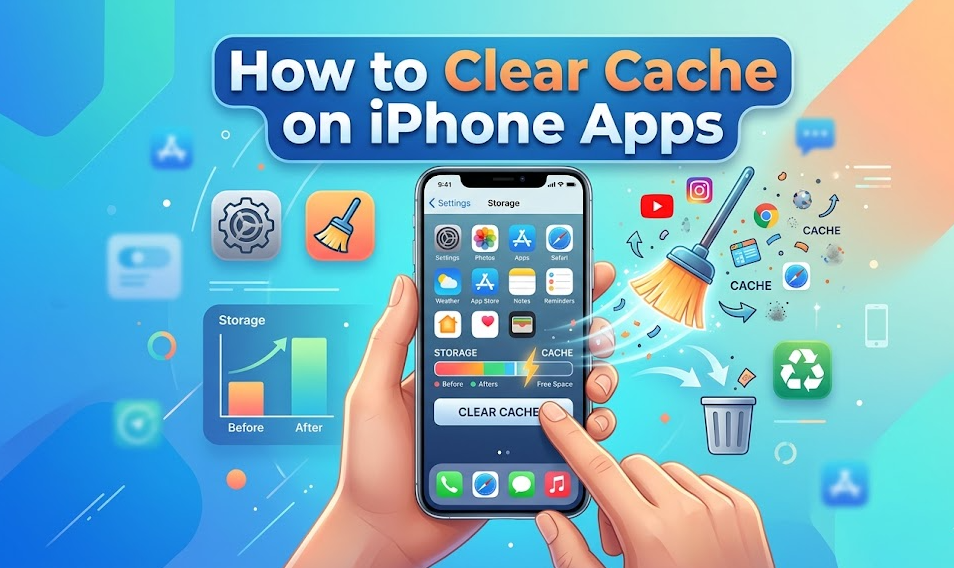
Many people search for how to clear cache on iPhone apps, but iOS works differently from Android devices. Most apps do not include a built-in “clear cache” button.
Instead, the easiest method is deleting and reinstalling the app.
Start by opening Settings and going to General. Tap iPhone Storage to see a list of apps and how much space they use.
Look for apps using large amounts of storage. Social media apps and streaming services usually store the most cached data.
Tap the app name and select Delete App. This removes the app along with all cached files stored on your device.
After deleting the app, open the App Store and reinstall it. When the app installs again, it starts fresh without old cache data.
You may need to log into your account again, but your online information such as posts or messages remains safe.
This method helps remove hidden files and improve app performance.
Also Read:- How to Find Volume: A Complete Beginner-Friendly Guide
How to Clear Cache on iPhone Instagram

Instagram stores many images and videos as cached data. This allows posts to load faster when you scroll through your feed.
However, after months of use, Instagram cache can occupy a large amount of storage.
To remove Instagram cache, open Settings and go to General, then select iPhone Storage. Find Instagram in the list of apps.
Tap the Instagram app and choose Delete App. This removes all cached files from your device.
Next, reinstall Instagram from the App Store. After installation, log into your account again.
Once the app starts fresh, it will only download new data when you use it. This reduces storage usage and can also fix loading problems.
If Instagram becomes slow or consumes too much storage, repeating this process can help.
Also Read:- How to Play Pickleball: Simple Beginner Guide
How to Clear Cache on iPhone Facebook

Facebook is another app that stores large amounts of cached media. Every time you view photos, videos, or stories, temporary files are saved on your device.
Over time, these files increase the size of the Facebook app.
To clear Facebook cache, open Settings and go to iPhone Storage. Find Facebook in the list and tap it.
Choose Delete App to remove the app along with stored cache files.
Then download Facebook again from the App Store and sign in to your account.
This simple process removes unnecessary temporary data and allows the app to run more smoothly.
Many users notice that the app size becomes much smaller after reinstalling it.
Also Read:- How to Lose Weight Fast on Metformin: Complete Guide for Safe and Effective Results
How to Clear Cache on iPhone Google Chrome

Some iPhone users prefer Google Chrome instead of Safari. Chrome also stores browsing data such as cookies and cached images.
To clear Chrome cache, open the Chrome app on your iPhone.
Tap the three-dot menu icon and go to Settings. From there, choose Privacy.
Inside the privacy section, select Clear Browsing Data. You will see options to remove cookies, history, and cached images.
Choose the items you want to remove and confirm the action.
Chrome will delete stored browsing files from your device. After this process, websites will load fresh data the next time you visit them.
This step can fix display errors and improve browser performance.
Also Read:- How to Make a Paper Airplane (Complete Step-by-Step Guide)
How to Clear Cache on iPhone 13, 14, 15, and 16
Many users wonder if the process changes between different iPhone models. Fortunately, the steps are almost identical.
Whether you use iPhone 13, iPhone 14, iPhone 15, iPhone 16, iPhone 16 Pro, or iPhone 16 Pro Max, cache clearing works the same way because all devices run iOS.
You can remove browser cache through Safari or Chrome settings. For apps, the best method is deleting and reinstalling them.
Newer iPhones may have larger storage capacity, but cached files can still accumulate over time.
Restarting your device occasionally also clears temporary system memory used by background processes.
Future devices like iPhone 17 will likely follow the same system because Apple keeps iOS design consistent across models.
Also Read:- How to Delete Instagram Account (Complete Step-by-Step Guide 2025)
Conclusion
Understanding how to clear cache on iPhone helps keep your device fast and organized. Cached data is useful because it improves loading speed, but too much of it can take up storage space and cause performance issues.
By clearing Safari and Chrome browsing data and occasionally reinstalling heavy apps like Instagram or Facebook, you can remove unnecessary files and free valuable storage.
No matter which device you use, whether iPhone 13, 14, 15, 16 Pro Max, or newer models, these methods remain simple and effective.
Making cache cleaning a regular habit ensures smoother app performance, faster browsing, and better storage management.
FAQs
How often should I clear cache on iPhone?
Clearing cache every few weeks is usually enough for most users.
Will clearing cache delete my personal data?
No, cache removal only deletes temporary files and does not affect your personal content.
Can clearing cache fix slow apps?
Yes, removing outdated cache files can improve performance and fix loading issues.
Does clearing Safari cache remove passwords?
No, saved passwords stored in iCloud Keychain remain safe.
Why do apps use so much storage?
Apps store temporary images, videos, and other data which increase storage usage over time.
For More Visit Accurate Unit Convert