
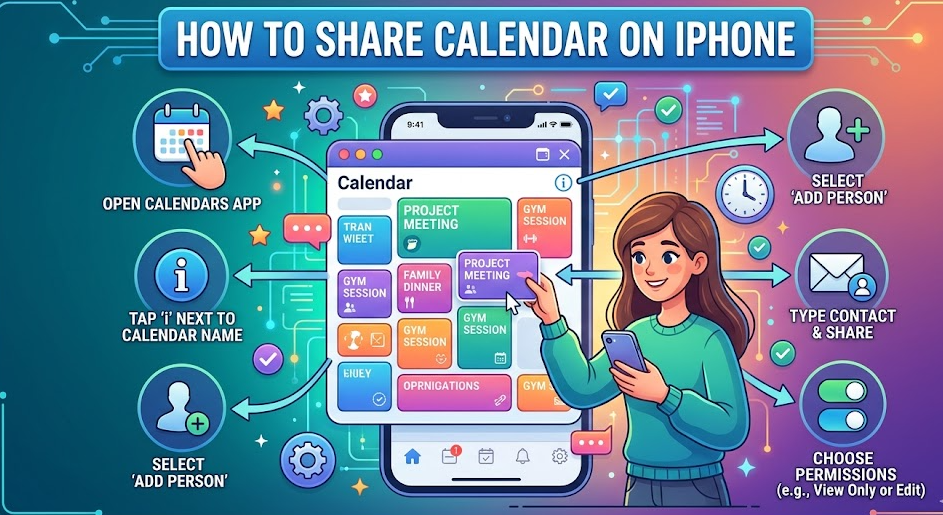
Sharing your schedule has never been more important in today’s fast-paced, connected world. Whether you’re coordinating meetings, planning family events, or managing work deadlines, knowing how to share calendar on iPhone can save time and eliminate confusion.
Apple’s Calendar app offers powerful sharing features, but many users don’t fully understand how to use them—especially when sharing with non-iPhone users, without iCloud, or across platforms like Android and Gmail.
This in-depth guide covers everything you need to know. You’ll learn multiple methods, practical use cases, and expert tips to make calendar sharing seamless across devices and platforms.
Why Sharing a Calendar on iPhone Is Important
Sharing a calendar on your iPhone allows multiple people to stay aligned with events, schedules, and commitments in real time. It’s especially useful for families, teams, and collaborative environments where coordination is essential.
Beyond simple event visibility, shared calendars allow permissions, edits, notifications, and synchronization across multiple devices. This reduces scheduling conflicts and improves productivity in both personal and professional settings.
Modern iOS versions, including iOS 26, have enhanced sharing capabilities, making it easier than ever to connect calendars across platforms like Gmail and Android.
Now let’s explore the different methods.
How to Share Calendar on iPhone (Step-by-Step Guide)
Sharing a calendar directly from your iPhone is the simplest and most efficient method when using iCloud. Apple has designed this feature to be intuitive while still offering advanced control over permissions.
First, open the Calendar app on your iPhone and tap “Calendars” at the bottom of the screen. Select the calendar you want to share, then tap the “Info” icon next to it. From there, choose “Add Person” and enter the email address of the person you want to share with.
Once you send the invitation, the recipient will receive a notification. After accepting, they can view—and optionally edit—the calendar depending on the permissions you grant.
This method works best when both users are within the Apple ecosystem, ensuring real-time syncing and smooth integration.
Key aspects to understand include permission settings, notification alerts, and syncing behavior across devices. These features ensure that shared calendars remain accurate and up to date.
Also Read:- How to Set Up Home Theater: The Ultimate Step-by-Step Guide
How to Share Calendar on iPhone Without iCloud
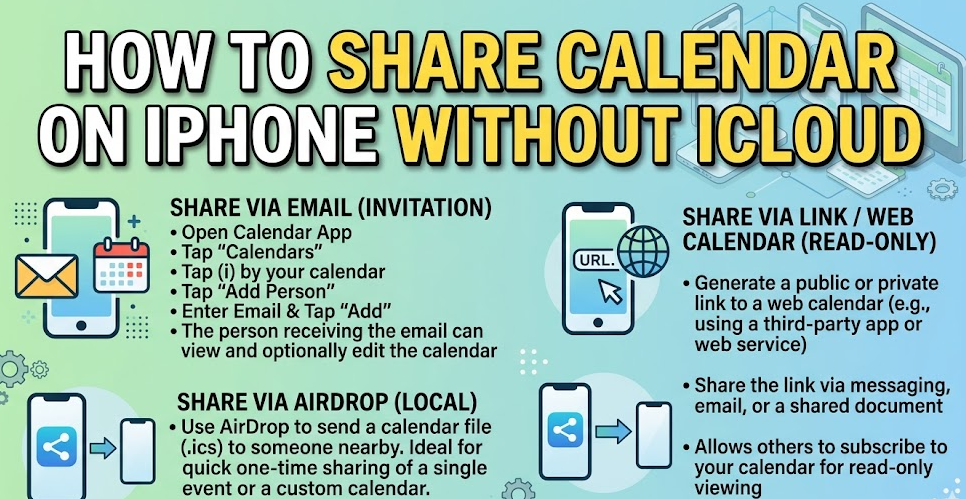
Not everyone prefers to use iCloud, and many users look for ways to share calendars without relying on Apple’s cloud ecosystem. Fortunately, there are alternative methods available.
One of the most effective ways is by using third-party services such as Google Calendar. You can create a calendar in your Gmail account and sync it with your iPhone. Once synced, sharing becomes easy through Google’s sharing options.
Another method involves exporting calendar events and sending them manually via email. While this is less dynamic, it works well for one-time sharing scenarios.
You can also use subscription-based calendars, where you generate a public calendar link and share it with others. This allows people to view your schedule without needing iCloud access.
These methods are particularly useful for cross-platform compatibility and for users who prefer not to rely on Apple services.
Also Read:- How to Check Tire Pressure: The Complete Beginner-Friendly Guide
How to Share Calendar on iPhone With Family
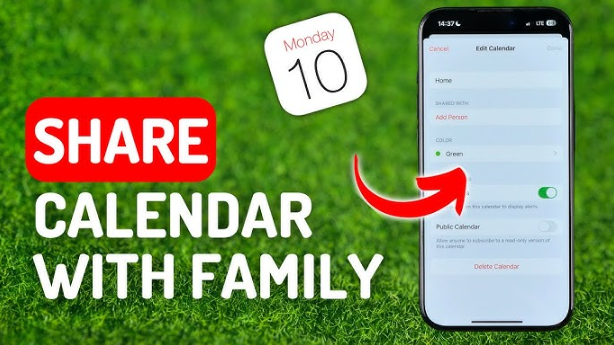
Family calendar sharing is one of the most popular uses of iPhone calendar features. It helps households stay organized by keeping everyone informed about important events, appointments, and activities.
Using Apple’s Family Sharing feature, you can create a shared family calendar automatically. All members added to your family group can access and contribute to this calendar.
To enable this, go to Settings, tap your name, select Family Sharing, and ensure Calendar sharing is turned on. Once activated, the shared calendar becomes visible to all family members.
This setup is especially helpful for coordinating school schedules, vacations, and daily routines. It ensures that everyone stays informed without constant communication.
Permissions can also be adjusted, allowing certain members to edit events while others only view them. This flexibility makes it ideal for both small and large families.
Also Read:- How to Pick a Lock – Simple and Complete Guide
How to Share Calendar on iPhone to Android
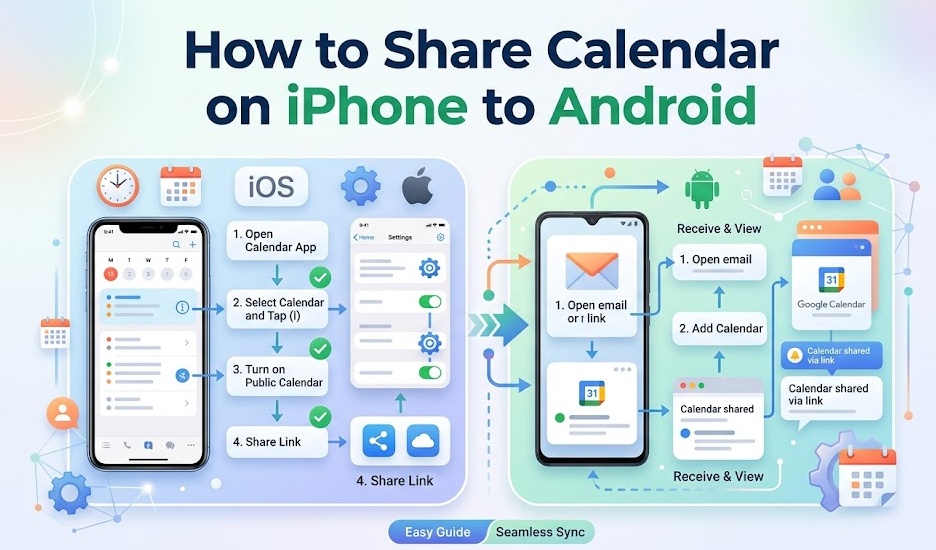
Sharing a calendar between iPhone and Android devices requires a slightly different approach, as both platforms use different ecosystems.
The most reliable solution is to use Google Calendar as a bridge. First, add your Google account to your iPhone and enable calendar syncing. Then create or select a calendar within Google Calendar.
From there, you can share the calendar by entering the Gmail address of the Android user. They will instantly gain access through their Google Calendar app.
This method ensures real-time synchronization across both devices, making it ideal for work teams or mixed-device households.
Another option is to use a public calendar link, which Android users can subscribe to. However, this usually provides view-only access.
Using cross-platform tools ensures smooth collaboration without compatibility issues.
Also Read:- How to Light a Charcoal Grill (Beginner Guide)
How to Share Calendar on iPhone With Someone
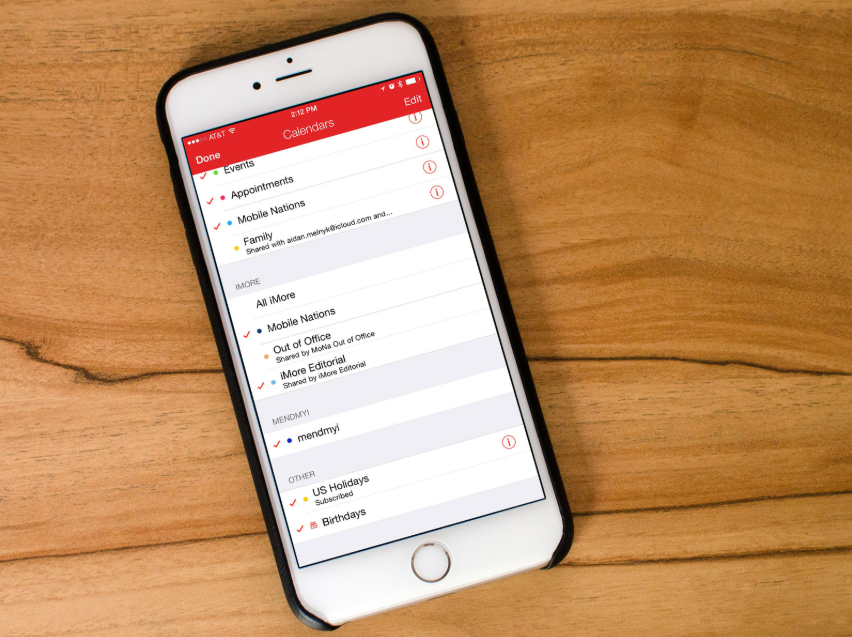
Sharing a calendar with a specific individual is straightforward and highly customizable. This is useful for colleagues, friends, or partners who need access to your schedule.
Start by opening the Calendar app and selecting the calendar you want to share. Tap “Add Person” and enter their email address. Once they accept the invitation, they will have access based on the permissions you set.
You can choose whether the person can edit events or only view them. This is particularly useful for maintaining control over important schedules.
Notifications also play a key role, as both users will receive updates when changes are made. This ensures that everyone stays informed in real time.
This method is widely used in professional environments where coordination and communication are essential.
Also Read:- How to Draw Shrek (Easy Step-by-Step Guide)
How to Share Calendar on iPhone iOS 26
With iOS 26, Apple has introduced improvements to the Calendar app, making sharing more efficient and user-friendly.
The interface is more streamlined, allowing users to quickly access sharing options directly from the calendar view. Enhanced permissions now allow more granular control over who can edit or view events.
Another major improvement is faster syncing across devices, ensuring that updates appear instantly. This is particularly useful for teams and families who rely on accurate scheduling.
iOS 26 also improves compatibility with third-party services like Google Calendar, making cross-platform sharing easier than before.
These updates make calendar sharing more powerful and accessible, even for beginners.
Also Read:- How to Make Coffee: Simple Beginner Guide
How to Share Calendar on iPhone 16 and iPhone 13
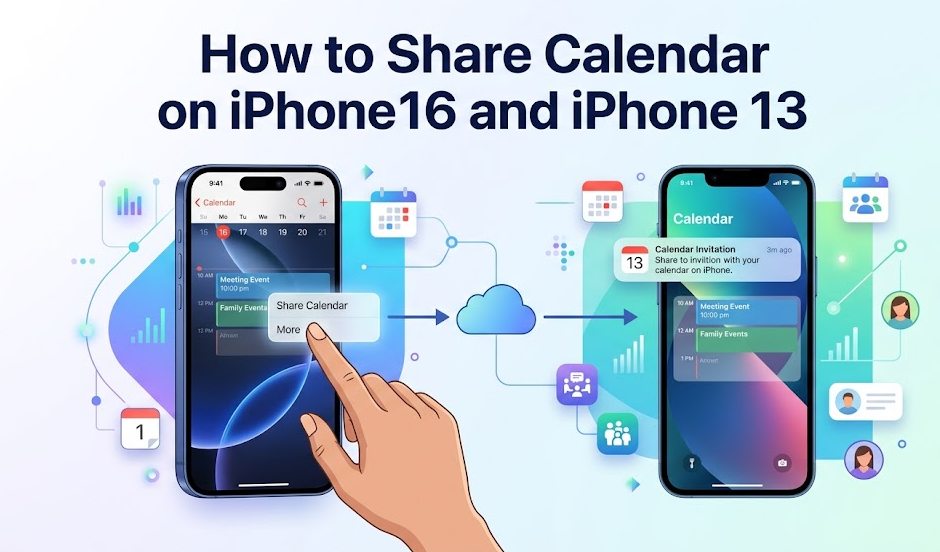
Whether you’re using an iPhone 16 or an older model like the iPhone 13, the process of sharing calendars remains largely consistent.
Both devices support the latest iOS updates, meaning you’ll have access to the same sharing features. The steps involve opening the Calendar app, selecting a calendar, and inviting users via email.
Performance improvements in newer devices like the iPhone 16 ensure faster syncing and smoother operation. However, the functionality itself is nearly identical across devices.
This consistency ensures that users don’t need to relearn the process when upgrading their phones.
It also makes it easier to share calendars across different iPhone models within families or teams.
Also Read:- How to Clear Cache on iPhone: Simple and Complete Guide
How to Share Calendar on iPhone With Gmail
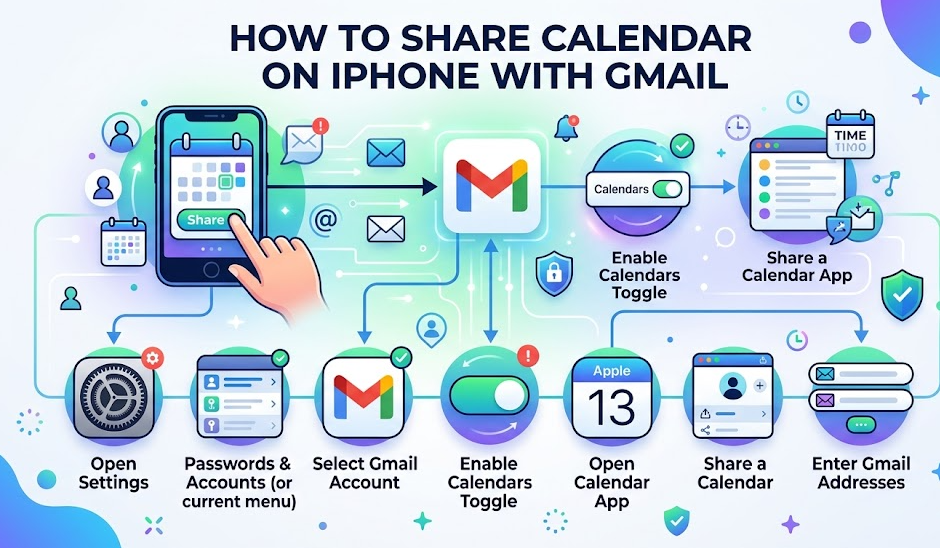
Using Gmail to share calendars is one of the most flexible and widely used methods, especially for cross-platform compatibility.
Start by adding your Google account to your iPhone through Settings. Once synced, your Google Calendar will appear in the Calendar app.
You can then manage sharing directly through Google Calendar by adding people via their email addresses. This allows both iPhone and Android users to access the same calendar.
Gmail-based sharing offers additional features such as color coding, advanced permissions, and easy integration with other Google services.
This method is ideal for professionals and teams who rely on Google Workspace tools.
Also Read:- How to Find Area: Complete Beginner-Friendly Guide
How to Share Calendar on iPhone With Others
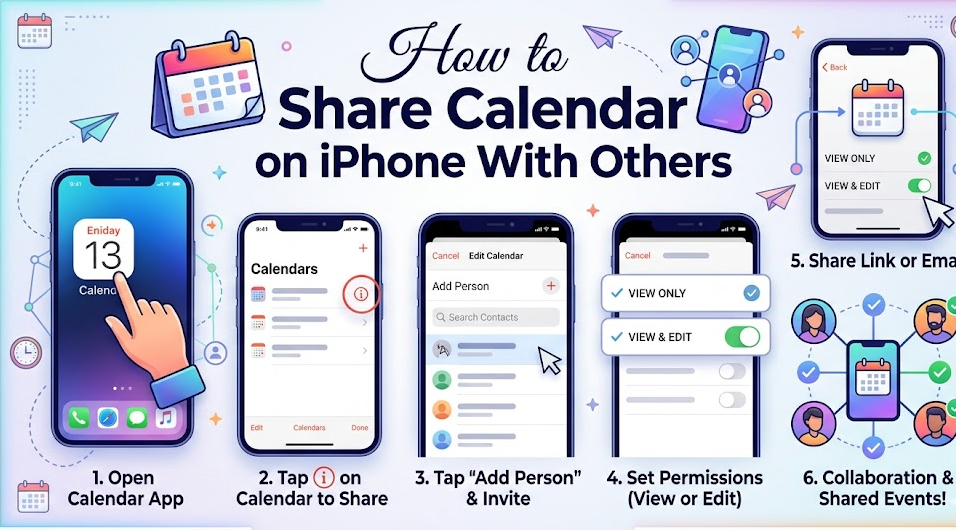
Sharing your calendar with multiple people at once is useful for group coordination, whether it’s for work, events, or social planning.
You can add multiple participants when sharing a calendar, allowing everyone to view and contribute. This creates a collaborative environment where schedules are transparent and organized.
Permissions can be adjusted for each individual, ensuring that only authorized users can make changes.
Group sharing also includes notification features, keeping everyone updated on new events or modifications.
This method is highly effective for managing projects, organizing events, and maintaining group communication.
Also Read:- How to Find Volume: A Complete Beginner-Friendly Guide
Conclusion
Understanding how to share calendar on iPhone is essential for staying organized in both personal and professional life. Whether you’re using iCloud, Gmail, or cross-platform solutions, Apple provides flexible options for every need.
From sharing with family members to collaborating with Android users, the iPhone Calendar app is a powerful tool that simplifies scheduling and communication.
By following the methods outlined in this guide, you can confidently share your calendar in any scenario—without confusion or technical barriers.
FAQs: How to Share Calendar on iPhone
Can I share my iPhone calendar without iCloud?
Yes, you can use Google Calendar or export events manually to share without iCloud.
How do I share my calendar with Android users?
Use Google Calendar as a bridge for seamless cross-platform sharing.
Can someone edit my shared calendar?
Yes, if you grant editing permissions when sharing the calendar.
Is calendar sharing available on all iPhones?
Yes, as long as your device supports modern iOS versions.
Why can’t I share my calendar?
Ensure iCloud or your chosen calendar service is enabled and properly configured.
Can I stop sharing my calendar anytime?
Yes, you can remove access for any user at any time through calendar settings.
For More UpdateS Visit: Accurate Unit Convert













Leave a Reply