
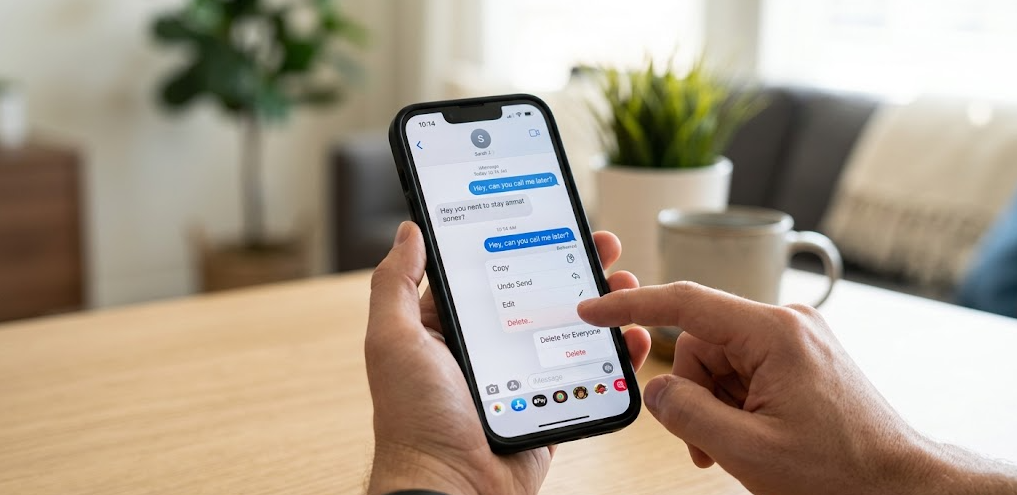
Many iPhone users search for how to delete text messages on iPhone for both sides because they accidentally send messages, share incorrect information, or simply change their minds after texting someone. Apple has introduced useful messaging features over the years, but there is still confusion about what actually happens when a message is deleted.
Traditionally, deleting a message on an iPhone only removed it from your own device. The recipient could still see the message unless they deleted it manually. However, with the introduction of iOS 16, Apple added the “Undo Send” feature in iMessage, giving users more control over sent messages. This feature works similarly to message unsending tools found on platforms like WhatsApp and Instagram.
The important thing to understand is that not every message can be removed from both sides. Whether the message disappears for the recipient depends on the type of message, device compatibility, and timing. Knowing these limitations can help avoid misunderstandings and improve privacy.
Can You Delete Text Messages on iPhone for Both Sides?
The short answer is yes — but only under specific conditions. If you are using Apple’s iMessage service, you can unsend a message and remove it from both devices. This is currently the closest solution to how to delete text messages on iPhone for both sides.
However, this feature does not work for regular SMS or MMS text messages, which usually appear as green bubbles in the Messages app. SMS messages are controlled by your mobile carrier rather than Apple’s servers, meaning Apple cannot remove them once delivered.
For iMessage users, the feature is fairly simple. You press and hold the message you sent, tap “Undo Send,” and the message disappears from the chat. Apple designed this feature mainly to help users correct mistakes quickly or prevent accidental messages from remaining visible.
Even though the message disappears, Apple still informs the other person that a message was unsent. This means the feature improves privacy, but it is not completely invisible. The recipient may notice that something was removed from the conversation.
How to Unsend Messages Using iMessage
If you want to know exactly how to delete text messages on iPhone for both sides, follow these simple steps on your iPhone:
| Step | Action |
|---|---|
| 1 | Open the Messages app |
| 2 | Select the conversation |
| 3 | Press and hold the sent message |
| 4 | Tap “Undo Send” |
| 5 | The message disappears from both chats |
This process only takes a few seconds, but timing is extremely important. Apple only allows users to unsend a message within two minutes of sending it. After that period, the option disappears permanently.
Another important detail is software compatibility. Both users should ideally be running iOS 16 or later. If the recipient uses an older iPhone version, the message may still remain visible even after you unsend it.
Requirements for Deleting Messages for Both Sides
Before attempting to remove a message, users should understand the requirements. Many people believe they can remove any text at any time, but Apple’s system has clear limitations.
First, the conversation must use iMessage instead of SMS. You can identify iMessage by blue chat bubbles. Green bubbles indicate standard carrier text messages, which cannot be removed from the recipient’s phone remotely.
Second, both devices should use updated Apple software. Older iOS versions do not fully support the Undo Send feature. Third, you must act quickly because the two-minute limit is strict. Once the timer expires, the message becomes permanent.
Below is a quick overview:
| Requirement | Needed? |
|---|---|
| iMessage conversation | Yes |
| iOS 16 or later | Recommended |
| Undo within 2 minutes | Yes |
| SMS compatibility | No |
These restrictions are important because many online guides incorrectly claim that all iPhone messages can be deleted for everyone. Apple officially confirms the feature only applies to iMessage.
What Happens After You Unsend a Message?
After you unsend a message, the text disappears from the chat window for both users. However, Apple still leaves a notification stating that a message was unsent. This prevents conversations from becoming confusing or manipulated secretly.
In some situations, the recipient may still have seen the message before you removed it. If they had notifications enabled, the content may have already appeared on their lock screen. This means unsending is useful, but not guaranteed to erase all traces of the message.
Another thing users should know is that screenshots cannot be controlled. If the recipient captured the message before it disappeared, it can still exist outside the conversation. Privacy tools help reduce mistakes, but they cannot fully undo shared information.
This makes timing extremely important when learning how to delete text messages on iPhone for both sides effectively.
Difference Between Deleting and Unsending Messages
Many users confuse deleting with unsending. These are actually two different actions in Apple Messages.
Deleting a message removes it only from your device. The recipient still keeps a full copy of the conversation. Unsending removes the message from both sides, provided all requirements are met.
Here is a simple comparison:
| Feature | Delete | Undo Send |
|---|---|---|
| Removes from your device | Yes | Yes |
| Removes from recipient | No | Yes |
| Works on SMS | Yes (your side only) | No |
| Time limit | None | 2 minutes |
Understanding this difference helps avoid common messaging mistakes.
Common Problems Users Face
Some users cannot find the “Undo Send” option. This usually happens because the message was sent more than two minutes ago or because the conversation is not using iMessage.
Others experience issues where the recipient still sees the message. In most cases, this occurs when the recipient uses an older iPhone version or another device type entirely.
A common misconception is that third-party apps can permanently erase SMS messages from both phones. In reality, no legitimate Apple-supported method exists for this. Be cautious with websites or apps claiming they can remotely delete standard text messages after delivery.
Privacy Tips for iPhone Messages
To avoid sending messages you later regret, consider reviewing texts before sending them. Apple also offers additional privacy features like message editing, disappearing verification codes, and notification controls.
You can also enable Face ID protection for messages, use Focus Mode during work hours, and turn off lock-screen previews for sensitive conversations. These small changes can greatly improve personal privacy.
For users concerned about accidental messages, the Undo Send feature remains one of the most useful additions Apple has introduced in recent years.
Conclusion
Understanding how to delete text messages on iPhone for both sides is important for privacy and communication control. Apple’s Undo Send feature allows users to remove iMessages from both devices, but only under specific conditions. The feature works only for iMessage chats, must be used within two minutes, and requires compatible iOS versions.
While the tool is helpful, it does not guarantee complete invisibility because recipients may still see notifications or screenshots before the message disappears. Knowing the limitations and proper usage can help users avoid confusion and protect sensitive conversations more effectively.
FAQs
1. Can I delete SMS messages for both sides on iPhone?
No, regular SMS messages cannot be removed from the recipient’s device.
2. How long do I have to unsend an iMessage?
Apple allows only 2 minutes to use the Undo Send feature.
3. Does the other person know I unsent a message?
Yes, iMessage shows a notice that a message was unsent.
4. Can I unsend messages on older iPhones?
The feature works best on devices running iOS 16 or newer.
For More UpdateS Visit: Accurate Unit Convert











Leave a Reply